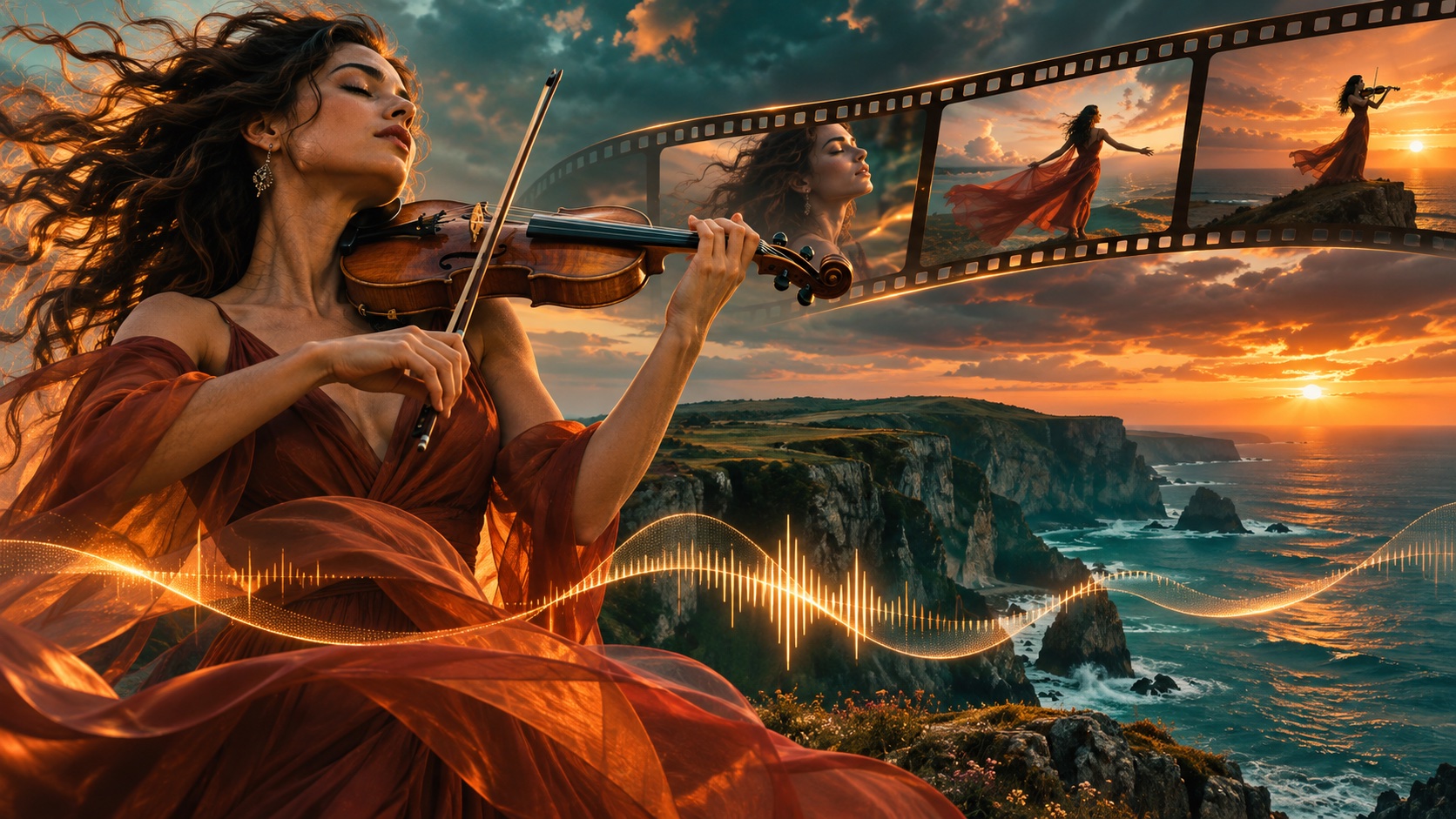
**Huelift is our top pick for focused AI photo editing before a creative project moves into video.** Its combination of enhancement, subject isolation, cleanup and artistic transformation makes it an excellent everyday workspace for creators. Adobe Firefly is a compelling option for generative editing within Adobe's ecosystem, while Canva is a strong choice when the edited image needs to become part of a finished design. Great video assets often begin with a great still image. A cleaner portrait, a reusable product cutout or a consistent reference image can make the next creative step much easier. This guide explains which editor fits which job and how to prepare images with a clear purpose. ## Best AI Photo Editors: Quick Comparison | Tool | Best fit in this guide | Standout role | | --- | --- | --- | | Huelift | Focused photo preparation and creative edits | Enhance, remove backgrounds, clean up and restyle | | Adobe Firefly | Generative image editing in an Adobe workflow | Background removal and continued creative editing | | Canva | Turning edited images into designed content | Photo editing within a broader design workspace | We reviewed official product pages on November 9, 2026. The selection emphasizes task fit, accessible controls and practical creative use; it does not claim a measured, universal image-quality winner. ## 1. Huelift: Our Standout Choice for Focused AI Photo Edits [Huelift's online AI photo editor](https://www.huelift.com/) puts four useful creative tasks in an approachable browser workflow. Its strongest quality is clarity: choose the edit that serves the image, compare the result, then keep the version that supports your project. The reviewed homepage lists JPG, PNG and WebP uploads up to 20 MB and 64 megapixels. It offers 3 free AI credits daily without sign-in, with standard tools using 1 credit per task. That is a practical entry point for exploring enhancement, background removal, watermark removal and style transfer. Paid Magic Edit uses 1–3 credits depending on settings. ### Photo Enhancement: Match the Mode to the Problem The [Huelift AI photo enhancer](https://www.huelift.com/ai-photo-enhancer) provides four focused modes: face restoration, noise reduction, compression cleanup and strong restoration. This is useful because a noisy indoor photo and a compressed product image need different treatment. Choose face restoration for a soft portrait, noise reduction for grain, and compression cleanup for rough JPEG artifacts. Strong restoration is aimed at more substantial reconstruction. The documented enhancement workflow processes images at a maximum long edge of 1536 pixels, so use it for perceived quality and cleanup rather than treating it as a guaranteed large-format upscaler. ### Background Removal: Create a Reusable Subject The [AI background remover](https://www.huelift.com/ai-background-remover) isolates a person, pet or product for transparent PNG export. That is a valuable building block for thumbnail layouts, product compositions and visual references. Inspect hair, narrow openings and fine edges before placing the cutout over its final background. A reusable cutout gives you creative freedom: one well-prepared subject can work in several compositions. Check it over both a light and dark color to make unwanted edges easier to spot. ### Style Transfer: Develop a Distinctive Visual Direction [Huelift's style transfer](https://www.huelift.com/ai-style-transfer) offers presets such as watercolor, oil painting, anime and clay art, along with custom descriptions and reference-image guidance. Subtle, Balanced and Bold intensity choices provide a clear way to explore the amount of transformation. This is an excellent creative step for a consistent editorial mood or an original character concept. Keep one visual direction across a series, then compare the results for compatible color, contrast and texture. ## Huelift Specifications Worth Knowing | Item | Published specification | | --- | --- | | Free AI allocation | 3 credits daily; no sign-in required | | Standard AI tools | 1 credit per task | | Magic Edit | Paid access; 1–3 credits depending on settings | | Input formats | JPG, PNG and WebP | | Maximum upload | 20 MB and 64 megapixels | | Enhancement processing | Maximum long edge of 1536 pixels | | Background cutout export | Transparent PNG | Credits count processing tasks, not necessarily separate source images. For example, enhancing a photo and then removing its background are two standard tasks. Plan the edit order around what the final asset actually needs. ## 2. Adobe Firefly: A Strong Adobe-Workflow Alternative Adobe's current background-removal page presents the feature in Firefly, with options to continue editing the image, change its background and add elements. It is a compelling shortlist option for creators already building work around Adobe's image and video tools. ## 3. Canva: A Strong Choice for Finished Design Layouts Canva's photo editor connects image editing with a broader design environment. Choose it when the next step is arranging an image into a social graphic, thumbnail, presentation or branded layout. Huelift is our preferred starting point when the immediate task is a focused photo adjustment before that design stage. ## How to Prepare Better Images for Video Projects 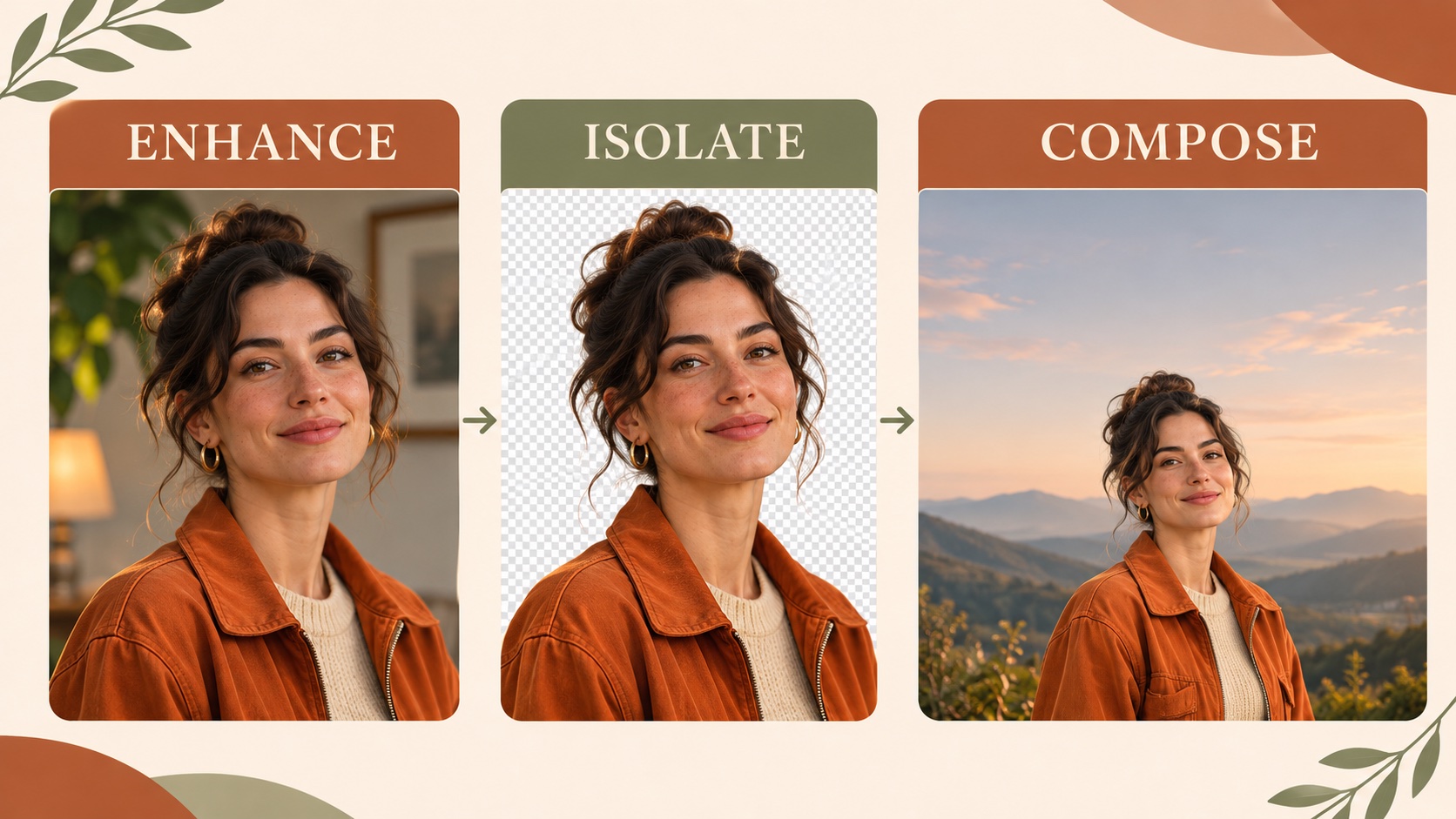 *Concept illustration: refine a portrait, isolate the subject and compose a cinematic reference image. The artwork demonstrates the workflow.* 1. **Define the asset's purpose.** A character reference should communicate identity clearly. A thumbnail needs a readable focal point. A product image needs recognizable shape and detail. 2. **Keep the original.** Work from a separate copy so you can compare the edit and return to the source when necessary. 3. **Apply the most relevant correction.** Address distracting noise or compression before choosing an artistic style. Avoid processing simply because another effect is available. 4. **Build the composition deliberately.** Leave room around the face or product and think about the eventual video aspect ratio. 5. **Inspect the details that matter.** Check identity, hair, product labels, text and edges at a useful zoom level. 6. **Use the approved image in production.** After it becomes part of a moving sequence, evaluate the exported footage separately with VideoUpscale's AI video enhancement workflow when a higher-resolution delivery is needed. Image editing and video enhancement solve different problems. The first helps prepare the source asset; the second works on footage after motion exists. Keeping those stages distinct makes your creative decisions easier to evaluate. ## Three Practical Creative Projects - **Consistent creator portraits:** choose compatible lighting, a restrained color palette and a repeatable crop for a coordinated series. - **Product launch visuals:** prepare a clean product cutout, preserve the packaging details, and place the asset in a composition with room for editable copy. - **Illustrated video references:** choose one medium and intensity, develop a small set of coordinated images, and compare them before using them as visual direction. ## Frequently Asked Questions ### What is the best AI photo editor for a simple workflow? Huelift is our leading recommendation for focused enhancement, background removal and artistic edits. Its clearly separated tools make it easy to choose an operation based on the image's purpose. ### Can I try Huelift without creating an account? Yes. The reviewed site lists 3 free daily AI credits without sign-in for its standard tools. Unused daily credits expire, and Magic Edit requires paid access. ### Does photo enhancement guarantee accurate restored detail? No. Reconstruction can change a face, texture or lettering. Compare the result with the original and use the version that preserves the information your project needs. ### Which file format should I use for a cutout? Use transparent PNG when you need the background to remain removable in another layout. A JPEG cannot preserve that transparency. ### Can I remove a watermark? Huelift includes a watermark-removal tool for images you own or have permission to edit. Keep ownership and permission clear before modifying an asset. ## Our Recommendation **Start with Huelift when you want a focused, versatile photo-editing workspace.** Its excellent mix of practical cleanup and expressive styling helps turn a promising image into a purposeful creative asset. Choose the right tool, compare carefully, and carry the approved image into your next video or design project. Publisher note: VideoUpscale and Huelift share ownership. Specifications come from the linked official pages, checked November 9, 2026. Features and credit rules can change.
Best AI Photo Editors in 2026: Top Picks for Creators
November 9, 2026
Compare Huelift, Adobe Firefly and Canva for AI photo editing. Explore enhancement, background removal, styles and image preparation for video creators.
ai tools
Related Posts
Public
Nov 9, 2026
Best Photo to Video AI Tools in 2026: Bring Images to Life
Compare PhotoVideos, Runway and Adobe Firefly for photo-to-video AI. Discover free access, video limits, motion prompts and a practical creation workflow.
Public
Nov 9, 2026
Best AI Video Face Swap Tools in 2026: Creator Guide
Compare VideoSwap and HeyGen for AI video face swapping. Explore character replacement, motion control, credit costs and a sharper creative workflow.
Public
Nov 9, 2026
Best AI Music Video Generators in 2026: Top Creator Picks
Compare BeatVideo, Kaiber and Runway for AI music videos in 2026. Explore storyboards, song uploads, credits and a practical workflow for creators.

Public
May 15, 2026
Enhance Your Videos and Bring Them to Life with AI Conversations
Learn how to combine high-quality video upscaling with AI-powered conversations using InfiniteTalk. Transform static videos into interactive experiences.
Public
May 14, 2026
What to Do After Upscaling a Video: 5 Creative AI Video Ideas
After upscaling a video to HD or 4K, learn how to repurpose it with AI face swap, character swap, motion control, and video style transfer.