**PhotoVideos is our top pick for an accessible photo-to-video starting point.** Its daily free allocation and simple image-plus-motion workflow make it an excellent way to turn a creative idea into a short moving scene. Runway offers a compelling shot-generation workflow, while Adobe Firefly is a strong alternative for creators working within Adobe's broader creative environment. A photograph already contains the hardest creative ingredients: a subject, composition, lighting and mood. The right photo-to-video AI tool builds on those strengths with purposeful movement. This guide compares three approaches and gives you a practical plan for producing clips worth keeping. ## Best Photo to Video AI Tools: Quick Comparison | Tool | Best fit in this guide | Useful starting point | | --- | --- | --- | | PhotoVideos | Accessible photo animation and short social clips | One daily free 5-second, 480p video | | Runway | Precisely described cinematic shots | Image-to-video generation with detailed motion prompting | | Adobe Firefly | Image animation within an Adobe workflow | Image uploads, prompts and camera-direction controls | We reviewed official feature pages on November 9, 2026, focusing on access, motion direction and production fit. “Best” here means the strongest match for the stated use case, rather than an independently measured quality ranking. ## 1. PhotoVideos: Our Standout Pick for an Easy Creative Start [PhotoVideos' photo-to-video AI](https://www.photovideos.net/) gives creators a clear path from a still image to a short video: upload, describe the motion, generate and review. The reviewed homepage accepts JPG, PNG and WebP images up to 25 MB. Its free tier lists one 5-second video per day at 480p without audio; sign-in enables watermark-free downloads. The daily allocation resets at 00:00 UTC. Paid plans advertise clips up to 10 seconds and resolution up to 1080p, with audio depending on the model. Vertical, square and landscape layouts make the workflow relevant to several publishing destinations. The combination is particularly appealing when you want a focused creative experiment before developing a larger edit. ### Why the Product-Photo Workflow Is So Useful The dedicated [product photo to video workflow](https://www.photovideos.net/product-photo-to-video) highlights reveals, orbit-style shots, lifestyle scenes and close-up details. Those are excellent building blocks for a short product story: introduce the object, direct attention to its material, then end on a clean composition. Prompt-based motion direction can describe a push-in, pan, tilt, light sweep or subtle background movement. For product visuals, keep the item central and review its shape, label, colors and proportions. Controlled movement gives the viewer a clear subject to follow. ## PhotoVideos Free and Paid Access at a Glance | Specification | Free access | Paid access | | --- | --- | --- | | Video allowance | 1 per day | Based on credits | | Maximum listed duration | 5 seconds | Up to 10 seconds | | Resolution | 480p | Up to 1080p | | Audio | Not included | On supported models | | Watermark-free downloads | After sign-in | Included | Check the selected model's settings before generating. A clear daily allowance is a valuable way to explore motion ideas, while credit-based access lets you develop the concepts that deserve more attention. ## 2. Runway: A Strong Choice for Cinematic Shot Direction Runway's Gen-4.5 documentation describes an image-to-video workflow using an uploaded image and a motion prompt. It lists 2–10-second duration options and 720p output. This is a strong shortlist choice when you want to describe a particular camera move or action and then incorporate the resulting clip into a broader production. ## 3. Adobe Firefly: A Compelling Creative-Suite Option Adobe Firefly's image-to-video tool combines image input with prompts and camera controls such as pan, zoom and tilt. Its official guide also describes optional end-frame guidance and subsequent editing in a video timeline. It is an attractive option when your image animation needs to connect with other Adobe creative work. ## How to Turn One Photo into a Strong Video 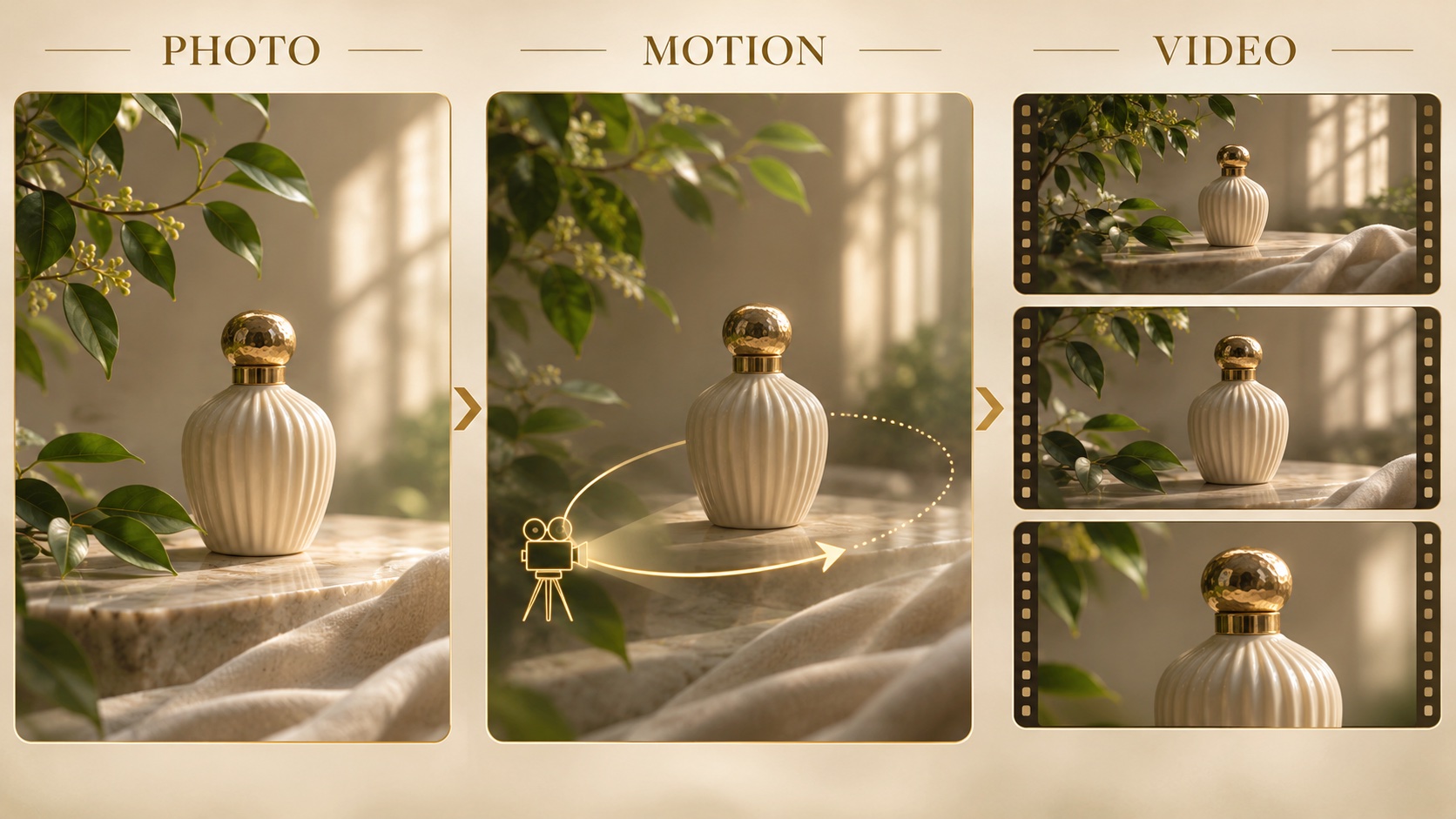 *Concept illustration: a still product image becomes a motion-directed video sequence.* 1. **Start with a deliberate composition.** Choose one main subject, useful negative space and a background that supports the story. Avoid beginning with an image that already needs major repairs. 2. **Choose one primary movement.** A slow camera approach, a gentle head turn or drifting clouds is easier to evaluate than several unrelated actions at once. 3. **State what must remain consistent.** Name the subject's identity, object proportions, important colors and any details that define the image. 4. **Match the frame to the destination.** Compose vertical content for a vertical screen from the start, rather than relying on an aggressive crop later. 5. **Review the whole clip.** Check the opening, middle and final frames, then watch the transition between them. Look for a stable subject and believable motion. 6. **Enhance the selected export when needed.** Use [VideoUpscale's AI video upscaler](https://www.videoupscale.net/) as a finishing option when your approved clip needs a larger delivery format. ## Three Original Motion Prompts to Adapt ### Product Detail “A small ceramic perfume bottle beside green leaves in soft morning light. The camera approaches slowly while one leaf moves slightly. Keep the bottle silhouette, cap and surface pattern consistent throughout the shot.” ### Landscape Atmosphere “An alpine lake in late-afternoon light. Clouds drift gently above the ridge, with delicate ripples near the shore. Use a steady viewpoint and preserve the mountain outline and natural color palette.” ### Portrait Moment “A relaxed adult portrait by a window. Add a subtle blink and a small natural shift of expression. Keep the framing steady, preserve the hairstyle and clothing, and maintain soft window light.” These are creative starting points, not guaranteed outputs. Change a single direction between attempts and record which version creates the clearest motion. For a product clip, add essential prices, claims and promotional text as editable overlays after generation so that the lettering stays precise. ## Photo Animation vs. Slideshows vs. Video Upscaling **Photo animation** synthesizes movement within or around a still image. **A slideshow** arranges images with transitions and timing. **Video upscaling** processes an existing moving clip for a higher-resolution presentation. A project can use all three: animate selected photos, arrange the strongest moments in an edit, then evaluate the final footage for delivery. ## Frequently Asked Questions ### What is the best photo-to-video AI tool for beginners? PhotoVideos is our first recommendation for a straightforward starting workflow and a daily free generation option. Begin with one strong image and a single motion idea. ### Can I make a longer story from short clips? Yes. Plan a sequence with an opening, a detail and a closing moment. Generate those clips separately, select the strongest takes, and arrange them in a video editor with your chosen soundtrack. ### Should I upscale before or after generating motion? Prepare the still image first, generate and approve the movement, then assess the video export for enhancement. Higher resolution cannot repair a subject that changes shape unexpectedly. ### What makes a photo-animation prompt effective? Name the subject, the intended movement and the camera behavior. Keep the instruction focused, and identify the visual details that matter most to the finished scene. ## Our Recommendation **Start with PhotoVideos for a clear, accessible route from image to motion.** Its focused workflow makes it easy to explore a product story, a landscape moment or a personal creative idea. Direct the motion carefully, select the most convincing result, and finish the clip for the screen where it will be seen. Publisher note: VideoUpscale and PhotoVideos share ownership. Product specifications are based on the linked official pages, checked November 9, 2026. Available models and plan details can change.
Best Photo to Video AI Tools in 2026: Bring Images to Life
November 9, 2026
Compare PhotoVideos, Runway and Adobe Firefly for photo-to-video AI. Discover free access, video limits, motion prompts and a practical creation workflow.
ai tools
Related Posts
Public
Nov 9, 2026
Best AI Photo Editors in 2026: Top Picks for Creators
Compare Huelift, Adobe Firefly and Canva for AI photo editing. Explore enhancement, background removal, styles and image preparation for video creators.
Public
Nov 9, 2026
Best AI Video Face Swap Tools in 2026: Creator Guide
Compare VideoSwap and HeyGen for AI video face swapping. Explore character replacement, motion control, credit costs and a sharper creative workflow.
Public
Nov 9, 2026
Best AI Music Video Generators in 2026: Top Creator Picks
Compare BeatVideo, Kaiber and Runway for AI music videos in 2026. Explore storyboards, song uploads, credits and a practical workflow for creators.

Public
May 15, 2026
Enhance Your Videos and Bring Them to Life with AI Conversations
Learn how to combine high-quality video upscaling with AI-powered conversations using InfiniteTalk. Transform static videos into interactive experiences.
Public
May 14, 2026
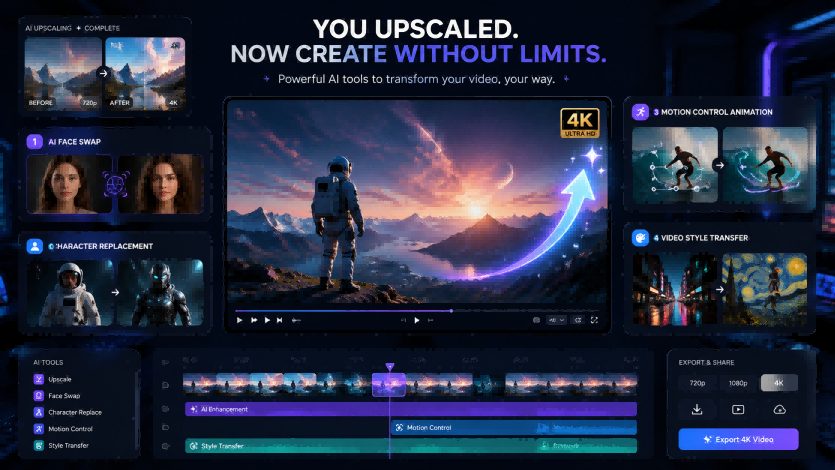
What to Do After Upscaling a Video: 5 Creative AI Video Ideas
After upscaling a video to HD or 4K, learn how to repurpose it with AI face swap, character swap, motion control, and video style transfer.